If you've ever downloaded a video online and ended up with an F4V file, chances are you've struggled to get it to play smoothly on your device. F4V, a Flash Video format, was once common for streaming, but its support has dropped over the years. Many media players no longer recognize it, and mobile compatibility is nearly nonexistent.
That’s where a simple converter can save you time and effort. Aiseesoft FLV Video Converter is one of those tools that handles F4V without fuss. You don’t need to be tech-savvy to use it—just follow a few steps, and your video is ready in a format that works. Let’s break down how to convert F4V files with this software.
How do you convert F4V with an Aiseesoft FLV Video Converter?
Download and Install the Software
Start by downloading Aiseesoft FLV Video Converter from its official website. The setup file is small and installs quickly. Just follow the prompts—click "Next," choose where to install, and let it finish. Once it's installed, open the program. The interface is clean, so you won’t get lost in layers of menus.
Add Your F4V File
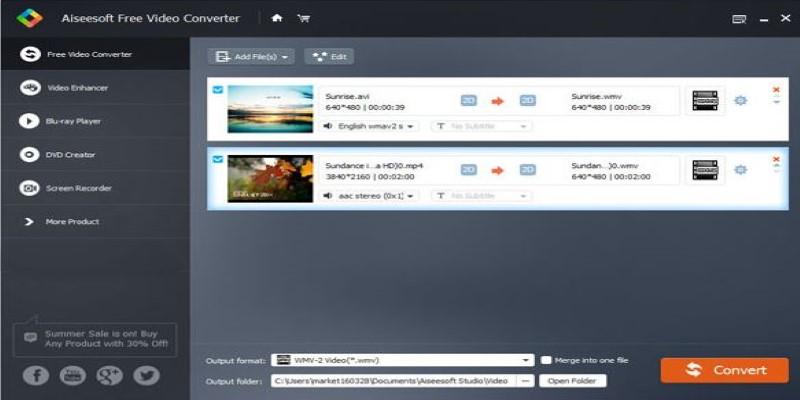
The top menu has a button labeled "Add File." Click it, and browse your folders to find the F4V video you want to convert. You can load one file or several simultaneously—batch conversion is supported. The file will appear in a list within the app, showing its name, length, and original format.
Choose the Output Format
Now, you must decide what format to convert the F4V file into. Click the "Profile" dropdown menu at the bottom of the interface. Aiseesoft gives you many options here—MP4, AVI, MOV, WMV, and formats tailored for devices like iPhones, Android phones, and tablets. MP4 is usually the safest choice, as it works on nearly every device and software.
If you're not sure which one to choose, there's even a section with presets based on devices. So, if you're planning to watch the video on your phone, you can just select your phone model from the list.
Adjust Output Settings (Optional)
You can skip this part if you're okay with the default settings. But if you want more control—to reduce file size or tweak video quality—click the "Settings" button next to the Profile menu.
You can change resolution, bitrate, frame rate, audio sample rate, and more. This is useful if you convert a large F4V video and want to shrink the file for easier storage or faster uploading.
Select Destination Folder
Below the settings, there’s an “Output Folder” field. This tells the converter where to save your finished video. By default, it’ll save in a folder within the software's directory, but you can click “Browse” and choose your desktop, a USB drive, or any other location you prefer.
Start the Conversion
With everything set, hit the big “Convert” button. The software starts processing right away. You’ll see a progress bar that shows how much time is left. The speed depends on your computer and the size of the video, but it usually takes only a few minutes for a standard file.
Once the conversion is complete, you'll receive a notification or a small prompt. Then, you can go to the destination folder and play your newly converted video in your regular media player—no more error messages or blank screens.
Optional Edits Before Converting
If you want to change your video before converting, Aiseesoft has a few built-in editing tools. Just click "Edit" next to the video you loaded. You can trim unwanted parts, crop the frame, adjust brightness and contrast, or add a watermark. It's not a full video editor but handles basic tweaks well.
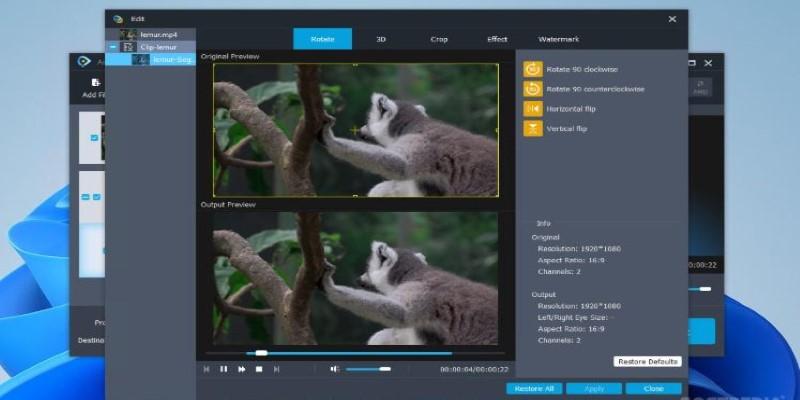
This feature can come in handy if your F4V video is too long or if you only need a portion of it. Use the slider to set the start and end points, and only that section will be converted.
Batch Conversion to Save Time
If you have multiple F4V files, don't convert them individually. Aiseesoft FLV Video Converter lets you load a whole folder and convert everything together. Select all the files you need, apply the same output format and settings, and click Convert. It processes them in order without asking you to do anything in between.
Compatibility After Conversion
Once converted, your MP4 or AVI file will work on most platforms—Windows, Mac, Android, iOS, smart TVs, and even some gaming consoles. You won’t need to install special codecs or apps. That’s one reason people prefer converting F4V instead of looking for old plugins to play them.
What If the F4V File Won’t Load?
If the software refuses to load a file, double-check that it is an F4V file and not corrupted. Some FLV files might use a similar structure, but no converter can fix them if they're damaged. You can try playing the file first in a player like VLC to see if it works. If it does, it should convert just fine.
Conclusion
F4V files might be fading out, but if you still come across one, there's no need to give up on it. Aiseesoft FLV Video Converter makes converting F4V into formats like MP4 or AVI simple and quick. You don’t need to wrestle with complicated options or worry about compatibility. The tool does most of the heavy lifting—you just load your file, choose a format, and hit Convert. Whether trying to save a clip from an old website or just want to play a video on your phone, this converter covers all the basics without slowing you down. Once you've tried it, keeping your video library in usable formats feels a lot easier.