Originally, green screen technology was only used by the biggest movie productions, but today, anyone from beginners up to professionals can benefit from it. The success of your video effects, YouTube clips or high-quality presentations depends a lot on having the proper software. BestGreenScreen.com focuses on the top geen screen software, describing their features, prices and advantages at all skill levels. Select the right tool that helps you create your ideas!
What is Green Screen Software?
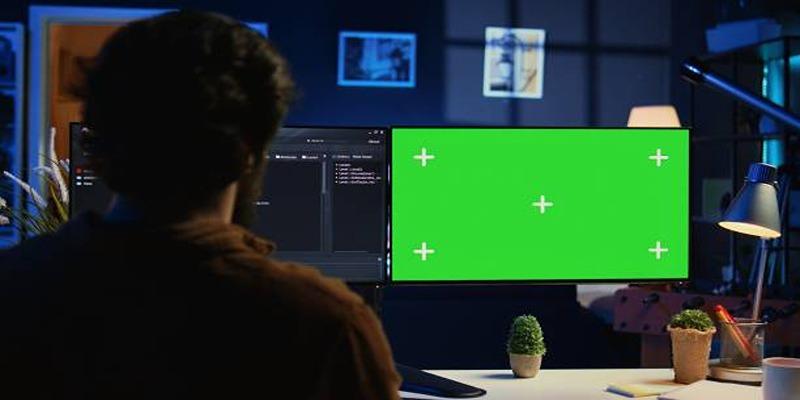
Chroma key, or green screen software, lets you swap a solid-colored background (usually green) with any image or video of your choice. It's a popular tool in film, TV, online content creation, and virtual meetings, enabling creative and professional visual effects.
The process is simple in principle but can vary in complexity depending on the tools used. High-quality software helps ensure seamless background changes without compromising on video quality.
Why the Right Green Screen Software Matters
Not all green screen software is created equal. The right tool can elevate your content by:
- Providing seamless keying with no unwanted edges or artifacts.
- Simplifying the editing process with intuitive interfaces and efficient tools.
- Offering advanced features like color correction, motion tracking, and high-resolution exports.
Choosing the right software depends on your skill level, budget, and project requirements.
Best Green Screen Software for Beginners
If you’re new to video editing and green screens, these tools are easy to use, affordable, and beginner-friendly.
1. iMovie (Mac)
Apple’s iMovie is an excellent choice for beginners using macOS or iOS. Its intuitive, user-friendly interface makes creating green screen effects easy, providing a seamless experience for aspiring video creators.
Key Features
- Drag-and-drop functionality for applying green screen effects.
- Basic video editing tools for trimming, transitions, and adding audio.
- Free for all Apple device users.
How to Use iMovie for Green Screen Effects
- Import your green screen footage and background video into iMovie.
- Drag the background video to the timeline and place the green screen footage above it.
- Select the green screen clip, then click the "Video Overlay Settings" button.
- Choose "Green/Blue Screen" from the drop-down menu.
- Adjust the settings to refine the effect if needed, ensuring a clean composite.
2. Movavi Video Editor
Movavi is a user-friendly, paid video editing tool designed for beginners. Its intuitive interface makes editing simple and accessible, helping users create professional-quality videos with ease, even without prior experience.
Key Features
- Easy chroma key application with just a few clicks.
- Wide selection of transitions, filters, and effects.
- Tutorials and tips for new users.
How to Use Movavi Video Editor
- Import your video clips into the editor.
- Open the Chroma Key tool and select the background color to remove.
- Adjust the parameters like tolerance and edges for a seamless effect.
- Add transitions, filters, or text as needed.
- Export your final video in the desired format.
3. OpenShot (Windows, Mac, Linux)
OpenShot is a powerful, free, and open-source video editor offering a range of features, including green screen capabilities, making it a versatile tool for creators of all skill levels.
Key Features
- Simple drag-and-drop green screen editing.
- Compatible with all major video formats.
- Completely free.
How to Use OpenShot for Green Screen Editing
- Import your video and green screen footage into OpenShot.
- Drag and drop the video clips onto the timeline.
- Right-click on the green screen footage, select Properties, and enable the Chroma Key effect.
- Adjust the chroma key settings to remove the green background.
- Preview and fine-tune your video.
- Export the edited video in your preferred format.
Best Green Screen Software for Professionals
For those seeking more advanced options with professional-grade capabilities, these tools provide the features and performance you need.
4. Adobe Premiere Pro
Adobe Premiere Pro is the go-to video editing software, trusted by professionals and content creators worldwide for its powerful features, versatility, and ability to deliver industry-standard results.
Key Features
- Advanced chroma keying with the Ultra Key tool.
- Exceptional color correction and grading tools.
- Seamless integration with Adobe After Effects for advanced motion tracking.
- Regular updates and excellent support.
How to Use Adobe Premiere Pro
- Import your media files by clicking on "File" > "Import" or dragging them directly into the media bin.
- Organize your clips in the timeline to create a sequence.
- Use the editing tools, such as the razor tool, to cut and refine your clips.
- Apply effects and transitions from the "Effects" panel to enhance your video.
5. Final Cut Pro (Mac)
Apple’s Final Cut Pro offers professional-grade video editing tools, tailored for Mac users seeking top-tier performance, advanced features, and seamless integration to create high-quality, cinematic projects with ease.
Key Features
- Advanced keying capabilities for fine-tuned editing.
- Background rendering for faster workflow.
- Supports 4K resolution and beyond.
How to Use Final Cut Pro
- Import your media files by clicking on the "File" menu and selecting "Import Media."
- Organize your clips in the timeline by dragging and dropping them into the desired sequence.
- Use the editing tools to trim, split, and arrange clips as needed.
- Apply effects or transitions by selecting them from the "Effects" browser and dragging them onto your clips.
- Adjust color grading and audio levels using the "Inspector" panel for a polished finish.
- Export your project by navigating to "File" > "Share" and choosing the appropriate export settings.
Factors to Consider When Choosing Green Screen Software
When selecting green screen software, consider these factors to ensure it meets your needs:
- Budget: Paid software often provides better performance and more features, but there are excellent free tools available as well.
- Compatibility: Ensure the software is compatible with your operating system (Windows, Mac, Linux) and works well with your computer’s hardware.
- Features: Look for tools with essential features like advanced keying, color correction, and multi-layer editing.
- Support and Tutorials: Programs with extensive documentation, tutorials, or customer support can ease the learning curve.
General Tips for Green Screen Editing Success
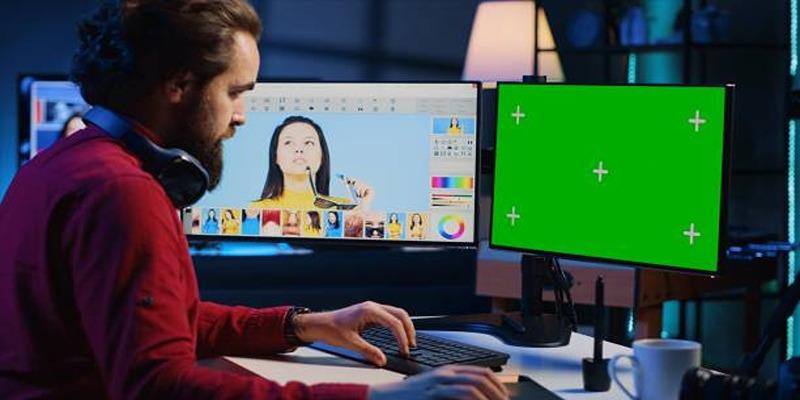
Whether you’re a beginner or a pro, these tips will help you get the best results from your green screen software:
- Lighting is Key: Ensure your green screen is evenly lit to avoid shadows and inconsistencies.
- Wear Contrasting Colors: Avoid wearing green (or colors close to it) when filming to prevent blending into the background.
- Use a High-Quality Camera: The better the footage, the easier it is for the software to apply precise edits.
- Practice Makes Perfect: Experiment with different software and techniques to develop your skills.
Final Thouhts
Green screen software is a game-changer for creators and businesses, offering endless possibilities to bring visions to life. Whether you’re a first-timer or a seasoned professional, investing in the right tool appropriate for your needs and goals is the first step to creating stunning content. If you’re still not sure which to choose, consider starting with free tools like OpenShot or DaVinci Resolve. Once you’re comfortable, you can explore advanced options like Adobe Premiere Pro or Final Cut Pro.