A clean Windows PC: avoid the app rabbit hole
You open a fresh Windows 10/11 PC and the fastest way to slow it down is installing “just in case” apps. It usually starts with a browser, then a PDF tool, then a “better” media player—suddenly you’re managing logins, pop-ups, and update nags instead of using the machine.
Keep one rule: install only what fills a real day-one gap. That means tools you’ll touch weekly—sign-ins, passwords, documents, and common files—while leaving “nice to have” utilities for later. The downside is you may miss a niche feature (like advanced PDF editing), but that’s a good problem to have because it means you waited until you actually needed it.
With that mindset, you can pick a small baseline that stays fast, stays signed in, and stays easy to maintain.
Before you install anything, do a quick Windows reset check
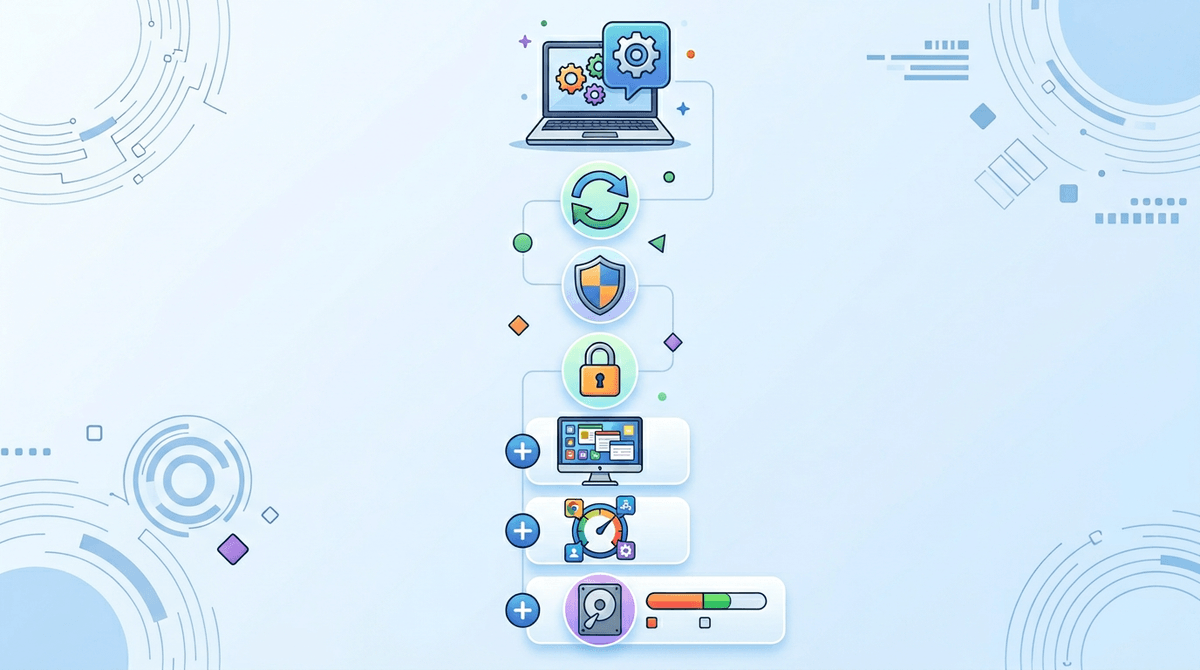
It’s tempting to start downloading apps the moment the desktop appears, but a lot of “new PC weirdness” comes from the reset itself, not missing software. Before you install anything, open Settings and do a quick pass: run Windows Update until it says you’re up to date (including optional driver updates), confirm you’re signed into the right Microsoft account, and check Activation shows Windows is activated. If you plan to use BitLocker/device encryption, turn it on now so it protects everything you add later.
Then look for the stuff that will waste your time later: Apps > Installed apps (uninstall obvious OEM trials), Startup (disable “helpers” you don’t need), and Storage (make sure you actually have room). This can take 10–20 minutes and a restart or two, which is annoying, but it’s still faster than troubleshooting crashes after you’ve already set up your tools.
Once Windows is steady, you can pick the browser you’ll actually stay signed into.
Browser choice: the one you’ll stay signed into
You’ll usually install a browser because a download link won’t open right, or you need your bookmarks and extensions back right now. The practical move is simple: use the browser that matches the account you already live in. If your day runs through Microsoft 365, Teams, and OneDrive, Edge keeps that sign-in smooth on Windows. If your life is Google—Gmail, Calendar, Drive—Chrome makes that setup painless. If you already rely on Firefox Sync, stick with Firefox so your bookmarks and saved logins show up without rebuilding anything.
Pick one and commit for a month. Running two browsers sounds harmless, but it’s how passwords, autofill, and extensions get split, and you end up signing into the same sites twice. Also, every extra browser adds update prompts and background processes. Once you’re signed in and syncing, you’re ready to make passwords stop being a loose pile.
Passwords feel messy—pick a manager that syncs everywhere
You’ll hit the first login wall fast: email, banking, shopping, a couple of work tools. If you reuse one “good enough” password just to get moving, you’ve already created a cleanup job. A password manager turns that pile into one place you can search, update, and sync across your phone and this new PC.
Pick based on where you’ll actually use it. If you’re staying inside Microsoft’s world, Microsoft Authenticator plus Edge’s built-in password features can be enough for basic logins. If you want something that follows you across Windows, macOS, iOS, Android, and any browser, use a dedicated manager like Bitwarden, 1Password, or Dashlane. Install the Windows app and the browser extension, then import from your old browser so you don’t re-save everything by hand.
The catch: if you lose the master password (or your recovery setup is weak), you can lock yourself out. Set up recovery options and turn on two-factor now, while you still have time and patience.
Docs on day one: Microsoft 365, Google, or LibreOffice?

You’ll notice it the first time someone sends a .docx or you need to fill a simple form: Windows can open it, but “open” isn’t the same as “work.” You want one docs setup that saves where you expect, shares without drama, and doesn’t make you think about file formats.
If your work or school already uses Microsoft 365, install it and sign in. Word/Excel/PowerPoint handle the most common documents cleanly, and OneDrive syncing is straightforward on Windows. If you mostly live in Gmail and Google Drive, Google Docs in the browser is often enough—especially if you collaborate a lot—then add Drive for desktop only if you need offline files.
If you want a no-subscription option or you’re setting up a low-stakes home PC, LibreOffice does solid basic editing without an account. The real-world snag is compatibility: complex Word layouts, tracked changes, and Excel sheets with heavy formulas can look different. Once you pick your docs “home base,” PDFs are the next thing that shows up everywhere.
PDFs always show up—choose a fast reader you trust
You’ll run into PDFs immediately—downloaded invoices, school forms, bank statements, manuals, boarding passes—and you mostly need two things: it opens instantly, and it doesn’t pester you. For a lot of people, the simplest answer is the reader you already have: your browser. Edge, Chrome, and Firefox handle viewing, searching, highlighting, and basic printing well enough that you can skip a separate install.
Install a dedicated PDF app only if you regularly need smoother scrolling on big files, tabbed PDFs, or reliable annotation tools. Adobe Acrobat Reader is the safe default for “this form must work,” but it can feel heavy and push extras. SumatraPDF is quick and quiet for plain reading, but it won’t replace full editing. Pick one, set it as default, and save “PDF editor” shopping for the day you actually need to sign or rewrite a document.
When Windows media apps disappoint, install one player and move on
You’ll usually notice the media gap when a video won’t play, audio is out of sync, or the built-in apps feel slow and limited. Don’t chase codecs or download five “helper” packs. Install one media player that handles common formats, set it as the default, and get back to your day.
For most people, VLC is the simplest “it just works” install for video and audio, including odd file types you get from friends or old backups. If you want something lighter and mostly watch standard files, MPV (with a basic front-end) or Media Player Classic-style apps can feel faster, but they take a bit more setup and keyboard learning.
The real-world downside: media players update often, and some builds bundle offers if you click too fast. Download from the official site, decline extras, and stop there unless you hit a real problem.
Your five-app baseline, plus the two-minute swap plan
You’ll still hit moments on day one where you think, “I need one more app.” Start with a baseline of five and treat everything else as optional: one browser (Edge/Chrome/Firefox), one password manager (Bitwarden/1Password or your platform pick), one docs home base (Microsoft 365, Google Docs, or LibreOffice), one PDF reader you trust (often just your browser, or SumatraPDF/Adobe Reader), and one media player (VLC).
Then use a two-minute swap plan: if an app adds prompts, feels slow, or won’t open a file you see every week, replace it once and stop. Give each replacement 48 hours before changing again. The annoying part is switching defaults and re-signing in, but that’s still cheaper than maintaining a messy pile all year.