It takes skill to make a trailer that gains people’s interest and is hard to forget. No matter if you are making a film, a game or preparing for a product launch, video editing software makes it possible to show your vision. The guide compares the best editing tools for Windows and Mac, telling you about their main features and how easy they are to use. No matter if you are a pro or just starting, you can find something suitable for you among these tools.
Why Choosing the Right Trailer Editing Software Matters

Making a trailer is not only about combining clips and putting in special effects. It focuses on telling stories, creating feelings and creating something visually stunning to keep viewers interested. The kind of software you use will affect whether you are able to:
- Seamlessly edit footage
- Add dynamic effects
- Sync audio with visuals
- Maintain a polished, professional finish
Selecting a tool that aligns with your specific needs ensures that you can focus on your creativity while the technology supports your vision.
The Best Software for Trailer Editing on Windows and Mac
1. Adobe Premiere Pro
Adobe Premiere Pro is one of the best tools for video editors used by people everywhere. Its range of powerful tools, flexibility and tight integration help make it perfect for making trailers.
How to Use Adobe Premiere Pro for Trailer Editing
- Import Your Footage: First, add your raw video clips to Adobe Premiere Pro. You can either use the Import option under the File menu or directly move your files into the Project panel by drag and drop. Organise your clips to be easily reachable.
- Set Up Your Timeline: Choose the proper resolution and frame rate for your trailer in order to create a new sequence. Click and drag any captured clips onto the timeline to get them organized.
- Trim and Arrange Clips: Utilize the Razor tool and Trim tools to cut your footage into shorter segments. Arrange the clips to build a narrative, focusing on the most striking and relevant visuals to captivate your audience.
- Add Transitions and Effects: Enhance your trailer's flow by adding transitions like cross-dissolves or fades. Use Adobe Premiere Pro's extensive library of effects to create dynamic visuals, such as speed ramps or color grading for dramatic impact.
- Include Audio: Import music, sound effects, and voiceovers and sync them with your video. Properly balanced audio adds to the emotional resonance of the trailer.
- Add Titles and Graphics: Use the Essential Graphics panel to insert text overlays, credits, or motion graphics, ensuring they complement the visual tone of your trailer.
- Preview and Export: Once your editing is complete, preview the trailer to check for any issues. Use the Export settings to render your trailer in the desired format and resolution.
2. Final Cut Pro (macOS Exclusive)
For Mac users, Final Cut Pro is one of the most efficient and feature-rich video editing tools available. It’s designed to take full advantage of Apple's hardware, ensuring a seamless and powerful editing experience.
How to Use Final Cut Pro
- Import Media: Begin by importing your video clips, audio files, and other media into Final Cut Pro. You can do this by dragging files into the library or using the "Import Media" option. Organize your media into events for easy access.
- Create a Project: Start a new project by clicking on "File" > "New" > "Project". Set the frame rate, resolution, and timeline based on your requirements.
- Edit on the Timeline: Drag your media files onto the timeline. Use the tools available, such as blade for cutting, or ripple edit to adjust clip durations effortlessly.
- Add Effects and Transitions: Enhance your video by including effects, transitions, and overlays from the effects browser. These elements can help to add professionalism and style to your content.
- Adjust Color and Audio: Utilize the built-in color grading tools to correct or stylize the footage. Similarly, refine the audio levels and add sound effects or music to create a cohesive and polished final product.
- Export Your Project: When your editing is complete, export the project by clicking "File" > "Share" and choosing the desired output format and resolution. Save the rendered file to your preferred location.
3. DaVinci Resolve
DaVinci Resolve by Blackmagic Design is rapidly gaining popularity as a comprehensive, professional-grade editing suite. Known for its outstanding color grading tools, Resolve is perfect for trailers requiring a cinematic touch.
How to Use DaVinci Resolve
- Set Up Your Project: Open DaVinci Resolve, click "New Project," name it, and hit "Create" to start.
- Import Media: Navigate to the "Media" tab and use the file browser to import your footage into the Media Pool. Drag and drop files for convenience, or use the "Import Media" option.
- Organize Your Clips: Arrange your imported clips into bins or folders within the Media Pool to keep your project organized, especially when working with multiple assets.
- Edit Your Timeline: Switch to the "Edit" page and begin assembling your video. Drag and drop clips onto the timeline, and use the built-in trimming tools to adjust their length and position.
- Enhance Your Footage: Move to the "Color" tab to apply advanced color correction or use preset LUTs for a distinct look. The node-based interface allows for detailed adjustments.
- Add Effects and Audio: Use the "Fusion" tab for visual effects and the "Fairlight" tab for professional-grade audio editing. Resolve provides a powerful toolkit to perfect both visuals and sound.
- Export Your Project: Once satisfied with the final edits, go to the "Deliver" page, set your export settings (format, resolution, codec), and click "Add to Render Queue." Finally, hit "Start Render" to export your completed video.
iMovie (macOS Exclusive)
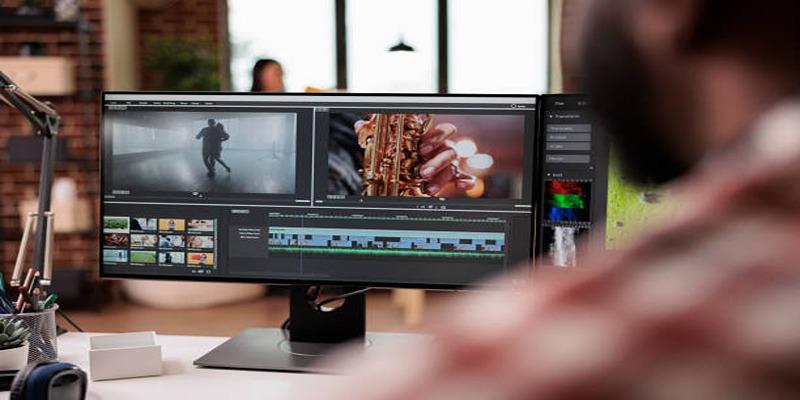
For those just starting out, iMovie is a user-friendly yet powerful tool available exclusively on Mac. While it doesn’t offer the complexity of Premiere Pro or Final Cut, it’s perfect for creating quick, engaging trailers.
How to Use iMovie
- Import Your Media: Open iMovie and create a new project. Click the "Import Media" button to add videos, photos, and audio files from your computer or connected devices.
- Drag Clips to the Timeline: Once your media is imported, drag and drop the clips into the timeline to start building your project. Arrange them in the desired sequence.
- Edit Your Clips: Use iMovie’s intuitive editing tools to trim, split, and adjust the clips. You can add transitions between scenes, apply filters, or adjust the video’s speed for creative effects.
- Enhance with Audio: Add background music or voiceovers by dragging audio files into the timeline. iMovie offers a range of sound effects and music tracks to choose from.
- Preview Your Project: Use the preview window to review your timeline and ensure everything looks and sounds just right. Make any necessary adjustments.
- Export Your Video: Once you’re satisfied with your work, click the "Share" button to export your video. You can choose to save it locally, upload it to social media platforms, or share it directly via email.
Final Thoughts
The best trailer editing software for you comes down to your skill level, creative needs, and budget. For professionals crafting high-impact trailers with advanced effects, Premiere Pro, Final Cut Pro, or DaVinci Resolve are excellent choices. If you're new to editing or working with limited funds, iMovie or HitFilm Express will more than do the job. Regardless of the tool you choose, remember that creativity and storytelling are key to making a legendary trailer.