Converting MP4 to SWF might sound like something from an older era of the internet, but there are still niche cases where it's needed. Maybe you're dealing with an old Flash-based presentation system or embedding a lightweight video into a legacy webpage that only plays SWF files. While SWF (Shockwave Flash) isn't exactly mainstream today, some platforms or workflows haven't caught up, and that's where a quick MP4-to-SWF conversion comes in handy. The good news? You don't need to buy anything. Some free tools still get the job done, and they're surprisingly straightforward.
Let's review a few solid options for converting MP4 to SWF without much hassle. Some are web-based, some are downloadable, but all offer decent ways to handle this specific task without emptying your wallet.
Free Tools to Convert MP4 to SWF
Freemake Video Converter
Freemake has been around for a long time, mostly known for converting between dozens of formats. It's free to use, though the free version adds a watermark to some videos. That might not matter for quick SWF tasks, especially if you just embed short clips or use them in non-public projects. The interface is easy to work with—drag the MP4 in, choose SWF as the output, and you're set. Freemake also lets you adjust basic video settings before conversion.
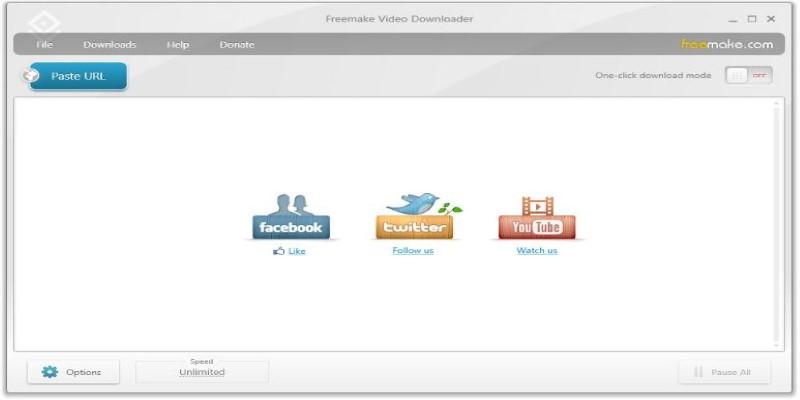
The catch? It only works on Windows, and you may have to go through some extra clicks to decline bundled software during installation. But once you’re past that, it does its job reliably.
Any Video Converter (AVC)
Any Video Converter has a free version that supports MP4 to SWF conversion. It looks more technical than Freemake, but it gives you more control if you like tweaking things. You can set frame rate, resolution, audio settings, and more. It's fast, doesn't crash often, and works on most Windows setups.
What's nice is that it doesn't force watermarks on your files. You'll still see upgrade prompts, but they're not intrusive. AVC also allows for batch conversion, which is great if you've got a folder full of MP4s that need to be changed to SWF in one go.
Online-Convert.com
If you don't want to install anything, Online-Convert is a browser-based tool that handles various formats. It supports MP4 to SWF conversion and works directly from your browser, so it doesn't matter whether you're using Windows, macOS, or even Linux.
The site is simple: upload your MP4, choose SWF as your output, tweak a few optional settings (like video bitrate or frame rate), and hit convert. The file is processed online, and once done, you can download the SWF straight to your computer.
There are file size limits for free users (usually 100MB per file), and you need a good internet connection. But for one-off conversions, this is fast and avoids cluttering your computer with software.
Convertio
Convertio is another online converter that's user-friendly and works in the browser. It's drag-and-drop simple and supports cloud services, too—meaning you can pull MP4s directly from Google Drive or Dropbox. It's good for quick tasks, especially if you don't want to manually download and upload files.
There's a size cap for free users, usually around 100MB. It also limits the number of conversions per day unless you create an account. However, it supports several formats and tends to handle SWF conversions without messing up video quality or audio sync.
FFmpeg (Advanced Users)
FFmpeg is a command-line tool, so it’s not for everyone. But if you’re comfortable typing commands into a terminal or command prompt, it’s extremely powerful. FFmpeg supports nearly every video format out there, including SWF. You can install it for free on Windows, macOS, or Linux.
To convert MP4 to SWF, you run a simple command like:
ffmpeg -i input.mp4 output.swf
You can also customize nearly every aspect of the video: bitrate, audio codecs, frame rates, resolution, and more. This is useful if you're working with a legacy system that needs videos in a specific configuration.
FFmpeg doesn't have a graphical interface by default, but if you prefer clicking over typing, third-party GUIs like WinFF work on top of it.
Step-by-Step: Using Any Video Converter to Convert MP4 to SWF
Let's convert an MP4 file to SWF using Any Video Converter, one of the easiest and most stable free tools available.
Step 1:
You can download and install any video converter for free from the official website. Once installed, open the software and click on the "Add Video(s)" button. Then, select the MP4 file you want to convert.
After the file loads, look at the top-right corner where it says, "Select Output Profile." From the dropdown, choose "SWF Movie Format (*.swf)." You can also click the settings icon to adjust the resolution, bit rate, or audio quality.
Step 2:
Once your settings are in place, hit the "Convert Now!" button. The software will process the file, which might take anywhere from a few seconds to a couple of minutes, depending on its length and size. Once finished, your new SWF file will appear in the output folder. You can test it by opening it in a Flash-supported player or embedding it in a Flash-based webpage.
Conclusion
MP4 is the standard, but that doesn't mean SWF is completely gone. Whether you're maintaining an older system or need SWF for a specific type of integration, free tools still make this conversion possible. Any Video Converter and Freemake are good choices if you want software you can rely on regularly. If you do this once or twice, browser tools like Online-Convert or Convertio are quicker. And if you're more hands-on, FFmpeg gives you total control with detailed format and codec options.