Most people assume you need something like Photoshop to erase a photo background. But if you have PowerPoint, that’s not the case. It has a built-in background remover that’s easy to use and good enough for most everyday needs—no extra software required. Whether creating a slide, prepping a profile picture, or cleaning up a product shot, knowing how to remove a background quickly can save time.
PowerPoint offers a basic version, but there are other tools—online, mobile, or built into other software—that give you more precision when needed. We'll cover PowerPoint's native tool, walk you through using it, and look at nine solid alternatives that work well when PowerPoint doesn't quite get it right.
Top Tools to Remove Photo Backgrounds
PowerPoint’s Built-in “Remove Background” Tool
Once you insert a picture in PowerPoint and click on it, a Picture Format tab appears. From there, clicking Remove Background tells PowerPoint to guess which part of the image is the subject and which is the Background. It shades the Background in purple to mark it for deletion.

If the automatic guess isn’t perfect, you can fine-tune by selecting Mark Areas to Keep or Mark Areas to Remove. After you're satisfied, you hit Keep Changes, and the Background disappears. This works best with images that have a clear subject and decent contrast.
Remove.bg
Remove.bg is a web-based tool that automatically detects and deletes photo backgrounds in seconds. There are no clicks or manual work—just upload a photo, and it will remove the Background for you.
This tool is especially effective with images that have fine details like hair, edges, or multiple color areas. It produces a clean result even with more complex photos. You can download the result as a transparent image and drop it straight into PowerPoint. Free use gives you standard resolution; high-res options require payment.
Canvas Background Remover (Pro Feature)
If you're already using Canva Pro, the background remover is one of its most useful features. Add your photo to any design, click the image, go to Edit Image, and choose Background Remover. Canva handles the rest, even with detailed subjects.
Once it's done, you can tweak the result or add design elements around it. Then, export your image with transparency and paste it into your slides. It's part of the paid plan, but for users already subscribed, it's simple and saves time.
PhotoRoom (Mobile App)
PhotoRoom is a mobile app that clears backgrounds automatically. It's fast, hands-off, and ideal if you're working on your phone or tablet. Just upload a photo, and it quickly removes the Background, which is ready to export.
The free version adds a small watermark, which you can remove with a paid upgrade. It's a good pick for casual use, especially when you’re not near your computer or need something quick while out and about.
Fotor’s Online Background Remover
Fotor offers a browser-based background remover that uses AI but also allows you to adjust the result afterward. Upload your image, let the tool work, and then use the editing tools to clean up any missed areas.
This makes Fotor helpful when the automatic cutout doesn't get it right the first time. Once you're done, you can export a clean, transparent version for PowerPoint. It's straightforward, and you don't need to sign up to use the basic version.
Microsoft Designer
Microsoft Designer is a newer design tool that connects with the Microsoft 365 family. Its background remover does a sharper job than PowerPoint’s native option, especially around fine edges.
After you import your photo, the Designer automatically removes the Background. You can then send the edited image back into PowerPoint without needing extra file steps. If you already use Microsoft 365, this is a smoother, more accurate upgrade over PowerPoint's standard tool.
Adobe Express Background Remover
Adobe Express provides a free and easy background removal tool through your browser. The basic version doesn't require an account. Upload your image, wait a few seconds, and you'll get a clean result with no background.
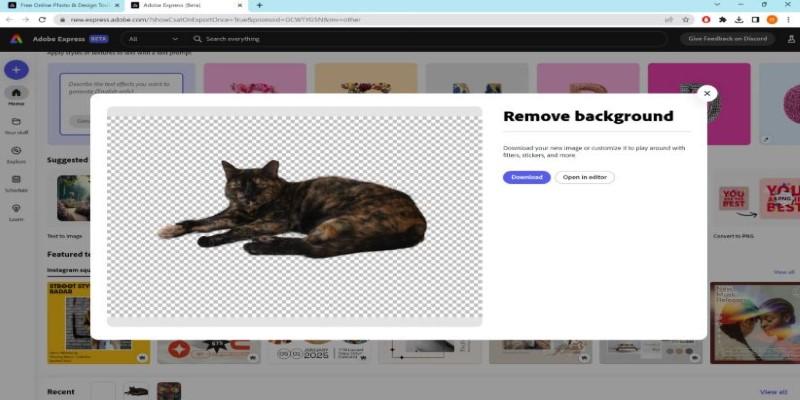
While not as advanced as Adobe Photoshop, it's good for everyday use. You can quickly clean up a photo and save it as a transparent file for your slides. It's a trusted option for those who want something fast without fuss.
Pixlr Remove BG
Pixlr offers a free and flexible background removal tool. You upload an image, and it automatically removes the Background. The tool is accurate with clear subjects and handles edge detection well.
What makes Pixlr stand out is the built-in editing panel. After removing the Background, you can crop, sharpen, or adjust brightness before downloading. This is useful when you want to polish the image quickly before using it in PowerPoint.
Slazzer
Slazzer works like Remove.bg but adds something unique: a plugin for PowerPoint itself. This means you can remove backgrounds from your presentation without uploading anything online.
It's handy for people dealing with many images who want to streamline the process. The online version also works well, especially for batch uploads. Free downloads are standard quality, and HD versions require credits.
How to Use PowerPoint’s Background Remover?
Here’s a quick guide to using PowerPoint’s built-in tool to remove backgrounds:
Insert Your Image
- Open your slide and go to the one where you want the image.
- Click Insert > Pictures, then choose your image.
- Once inserted, click on the image to activate the Picture Format tab.
Remove the Background
- In the Picture Format tab, click Remove Background.
- PowerPoint shades what it plans to remove in purple.
- Use Mark Areas to Keep if it tries to delete something important.
- Use Mark Areas to Remove to clean up anything it missed.
Click Keep Changes when you're satisfied. Your photo will now have no background and can sit neatly on any color or design you choose.
Conclusion
PowerPoint's background removal tool won't replace full-featured photo editors, but it works well for quick edits. It's built-in, easy to use, and works fine for most presentations. When you need better results, tools, like Remove.bg, Canva Pro, or even Microsoft Designer, give cleaner cuts and more control. It's often worth running your image through one of those and importing the cleaned-up version into PowerPoint.